
Real-time Object Detection Surveillance Software
Real-time Object Detection Surveillance Software
A surveillance software with real-time object detection capability.
Developed as a prototype while working at the Center for Army Analysis and Simulation, Republic of Korea Army Headquarters.
Demo Video
Recommend viewing the demo video in fullscreen with high resolution (1080p).
Key Highlights
- Fine-tuned the object detection model on military datasets and attached GUI.
- Increased frame throughput by 60% using multi-threading and multi-processing.
- Deployed the software across six army bases for user testing.
Key Functionalities
Below are key functionalities incorporated into the software to help reduce user fatigue and help collect data for future model fine-tuning.
Ignore-Regions
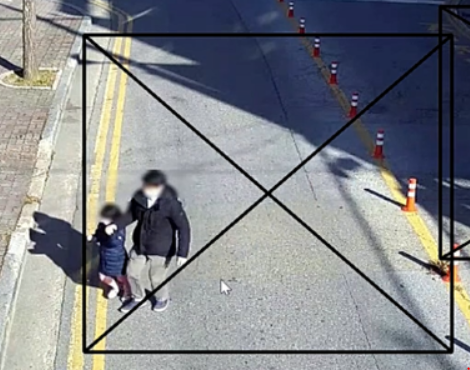
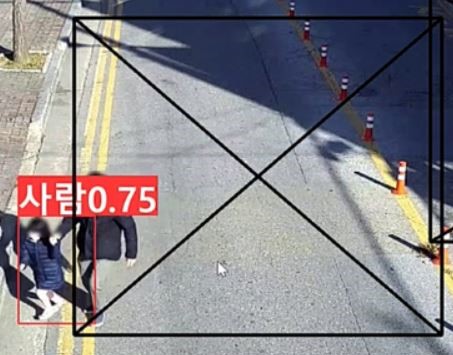
Functionality: If a detected object’s bounding box is covered n% or more by an ignore-region, the detection won’t be displayed on the screen ().
Purpose: To ignore stationary objects that cause continuous false positives, or to ignore background regions that are not important for surveillance.
Interaction Method: Left-click-and-drag on the camera screen to create; right-click on the ignore-region to remove.
Events and Pop-ups
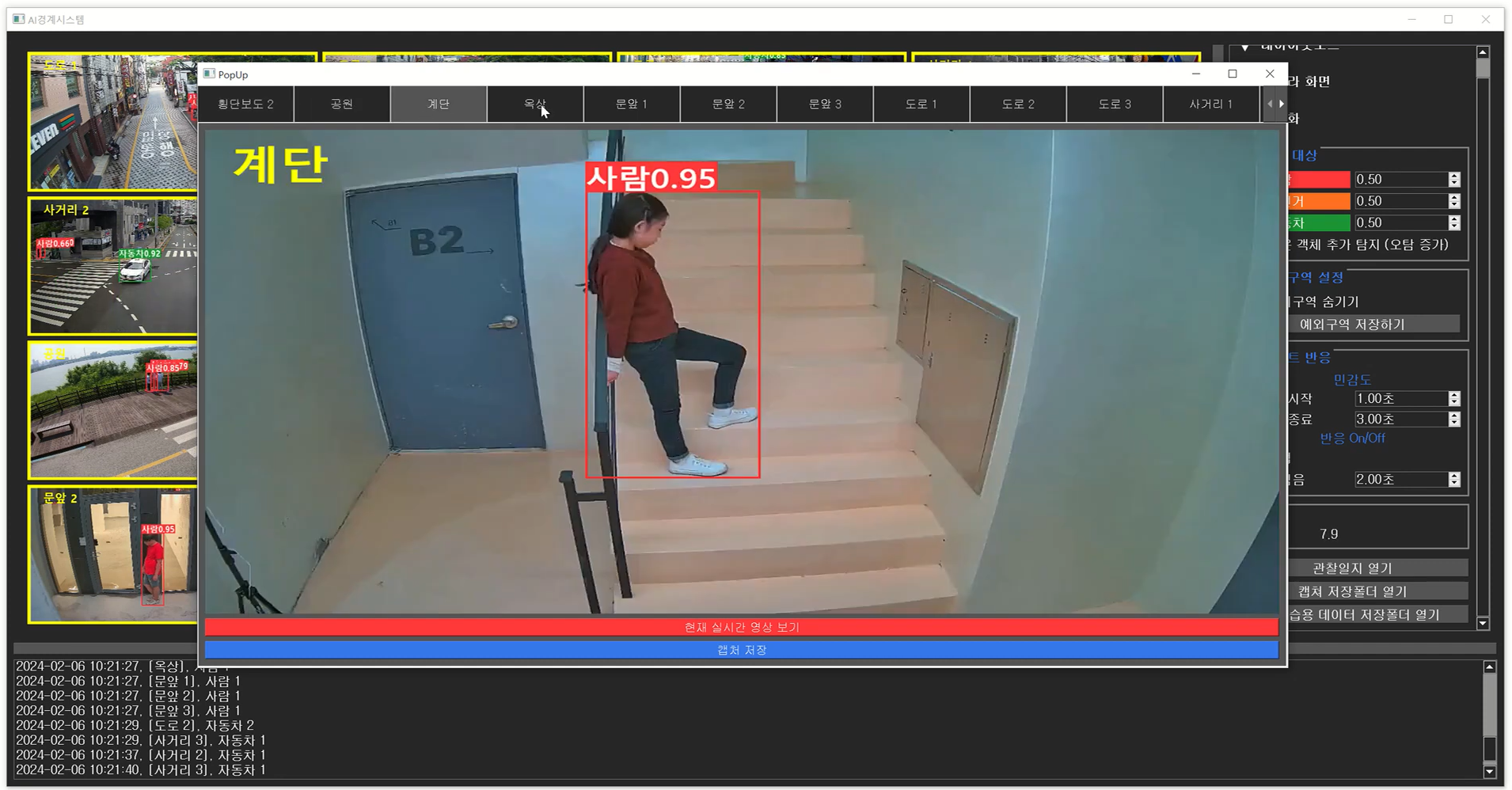
Functionality: Alert the user through a pop-up window when there is a new ‘event’. Displays events separately in each tab. Initially displays a screen capture of the moment the event began.
An ‘event’ starts when a camera continuously detects objects for a period of time, and the event ends when the camera hasn’t detected any objects for a period of time.
Purpose: Notify users of detected activity. Help users verify what object triggered the event, even if the object is no longer in sight of the camera.
Interaction Method: Click the pop-up’s red button to view the real-time feed. Use the sidebar to adjust pop-up on/off and event start/end thresholds.
Screen Captures
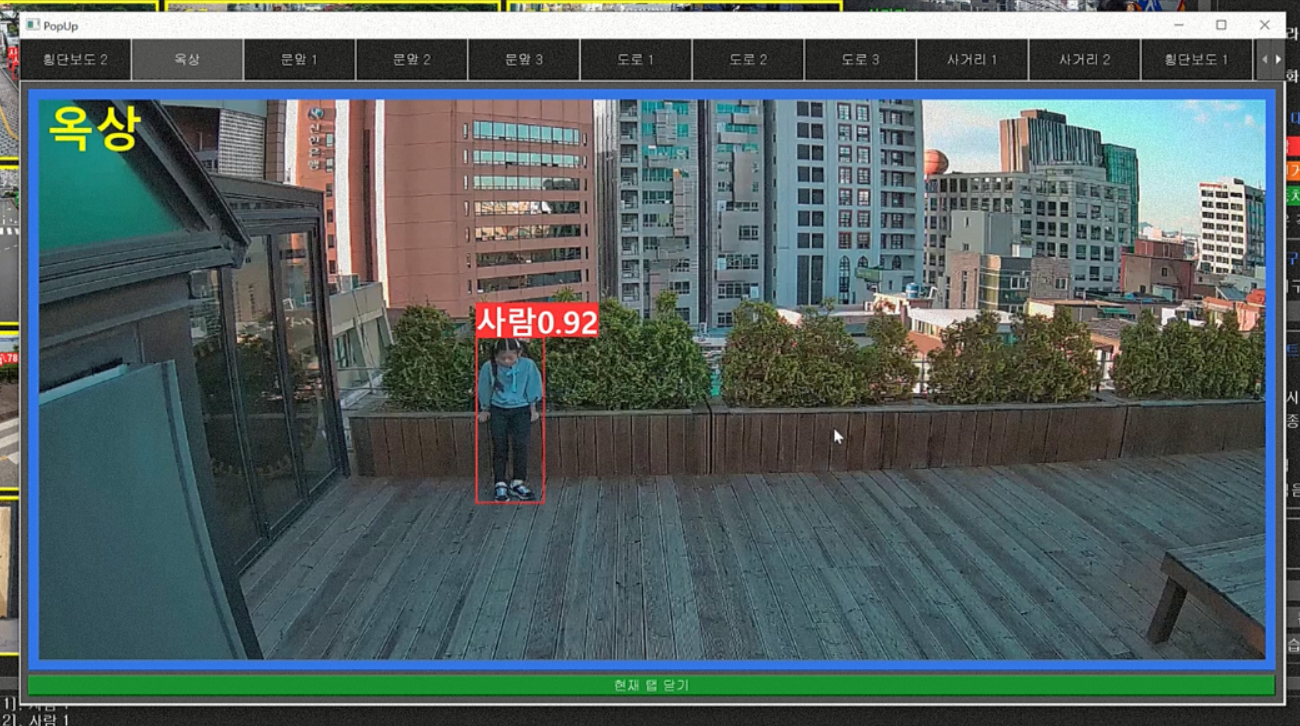
Functionality: Saves an image with the bounding boxes drawn. Also saves the original image and a .txt file of the bounding box labels.
Purpose: Records keeping. Data collection for future model fine-tuning.
Interaction Method: Double-right-click on any camera screen or click on the blue ‘save capture’ button on pop-ups. A blue border blinks around the screen to indicate that a screen capture has been taken.